
Sync & Data
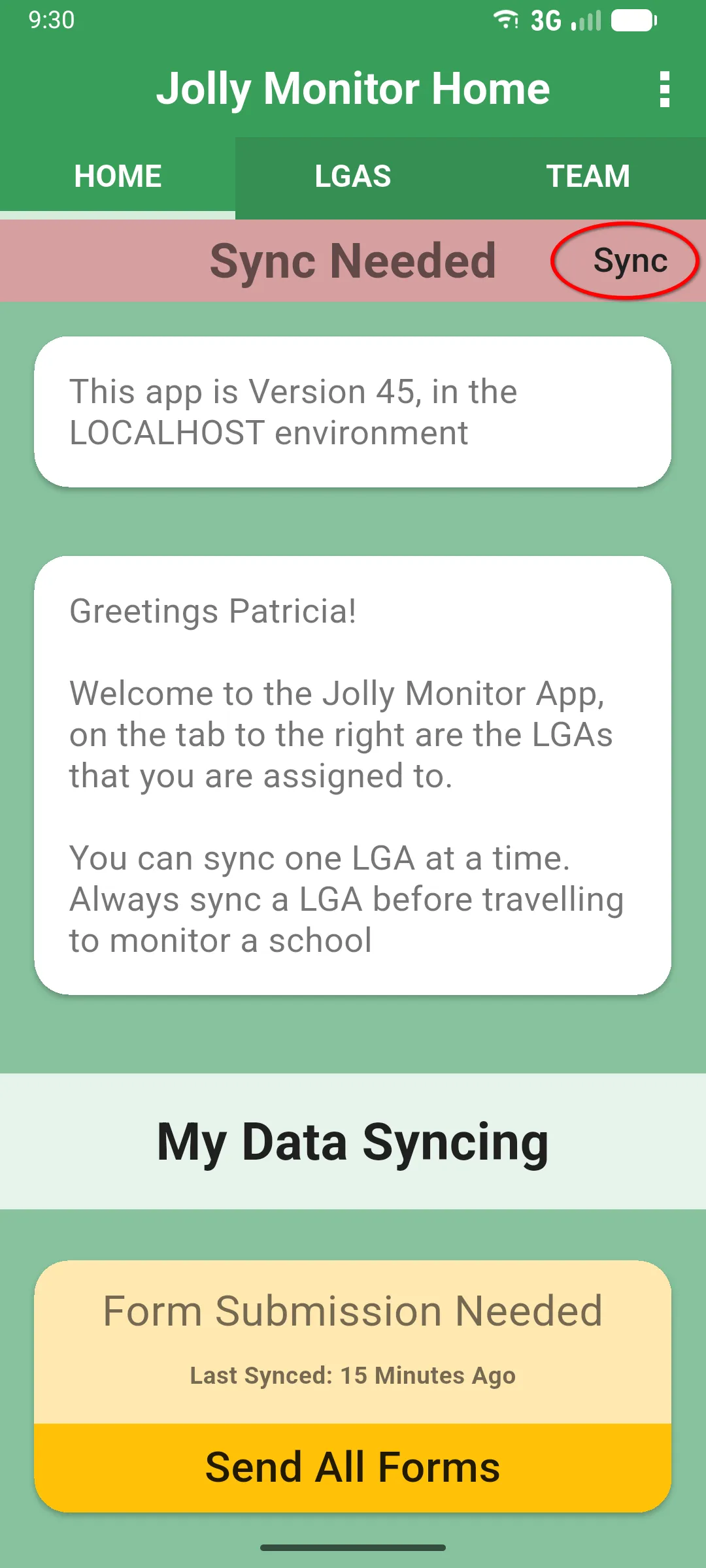
Everything you do on the device (a new visit, teacher monitoring, pupil assessments, answers) is saved locally first. The pink Sync Needed banner appears at the top of the home screen whenever there is local work that hasn’t been sent to the server yet. Running a sync uploads those changes and pulls down anything new the server has for you (new districts, schools, teachers, forms and previously synced visits).
How to sync
Section titled “How to sync”From the home screen, tap Sync on the pink Sync Needed banner, or Sync Again on the My Data Syncing card. Either one runs a full sync. The three-dot menu also has a Sync option you can use even when the banner isn’t showing.
Once the sync finishes, the banner disappears and the My Data Syncing card turns green with All data submitted.
Recovery and errors
Section titled “Recovery and errors”After a network failure, keep the app installed and retry Sync when connected. If a password-change message appears, sign back in as the same person with the updated password; this preserves pending work. Normal logout clears local account data and offers Cancel, Sync now and Log out anyway when changes remain.
In app versions with the new Settings controls, Pending work backup keeps recovery copies separately from sync; it does not upload assessment results into the dashboard. Use Error reports to find the latest reference or send saved reports. See backups and troubleshooting for those shared controls.