
Region Officials
Region officials are the monitors who work at district level within a project’s region. They do most of the school visiting, so most of the activity figures in the dashboard are theirs.
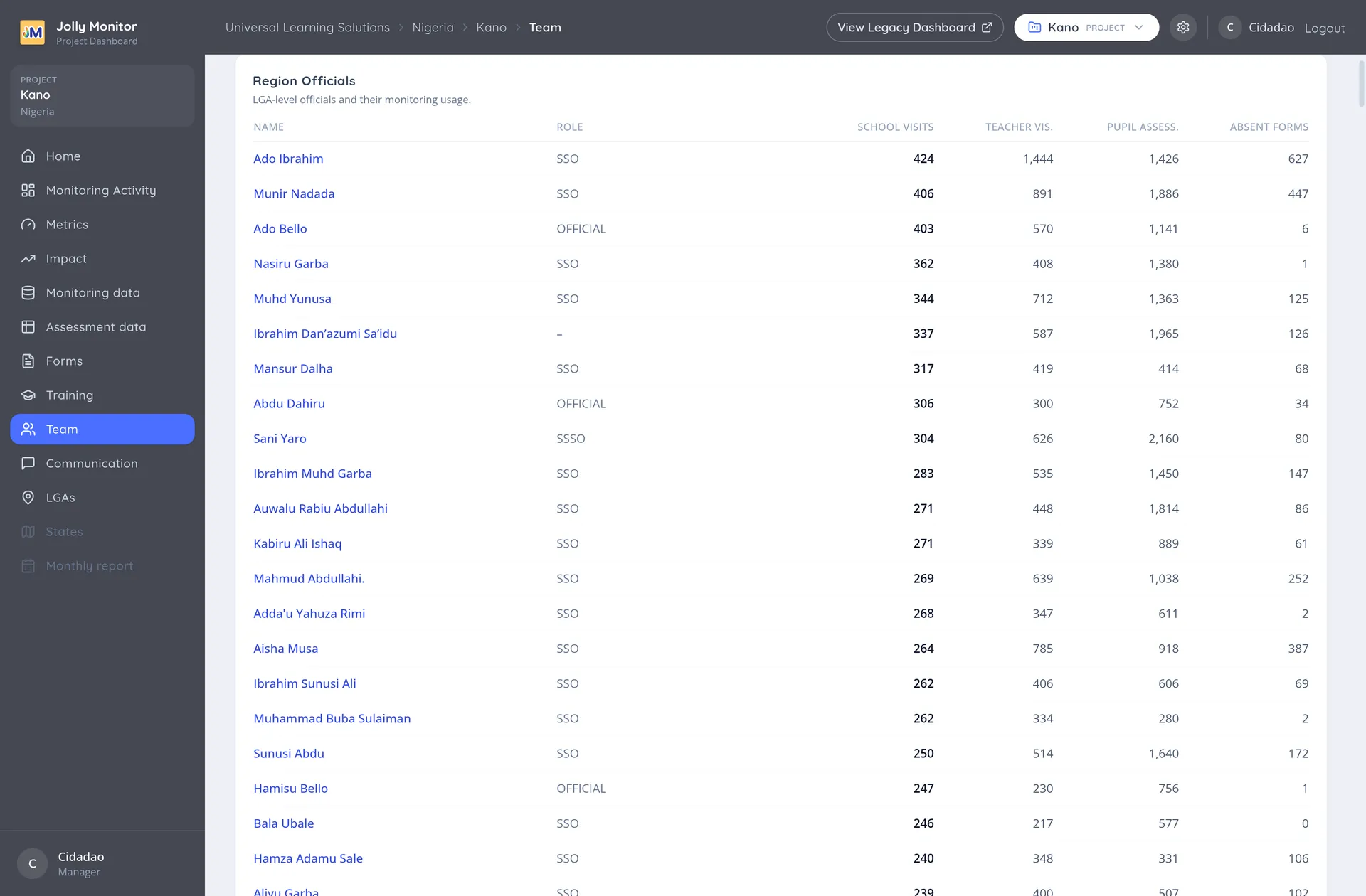
The officials list
Section titled “The officials list”The list sits in the project’s Team section, under its own heading, described on the page as the district-level officials and their monitoring usage.
Each row shows the official with their Role, their job title, and their counts of School visits, Teacher visits, Pupil assessments and Absent forms.
The table comes ordered by school visits, most active first, so who is doing the most and who has stopped is visible at a glance. The counts cover all time.
An official’s profile
Section titled “An official’s profile”Clicking a name opens their profile, which brings together:
- Their details: role, job title, gender, and their pin for signing in on the app.
- Their last sync, shown next to their role at the top. This is the single most useful field when somebody reports a problem, because it tells you whether their data is reaching the server at all.
- Their activity: school visits, teacher visits and pupil assessments.
- The forms assigned to them and the districts they operate in.
Actions on a profile
Section titled “Actions on a profile”These are manager actions (other roles read the profile without them):
- Edit changes their details, including the pin.
- Swap to Project Staff changes their role, for when somebody moves between the two kinds of monitor.
- Delete removes them.
Districts an official operates in
Section titled “Districts an official operates in”An official is assigned the districts they cover, which is what puts those schools into their app. If somebody says a school is missing from their device, this assignment is usually the reason.
Officials, staff and country officials
Section titled “Officials, staff and country officials”Three kinds of people appear across the dashboard and they are easy to confuse:
| Kind | Where they sit | What they do |
|---|---|---|
| Region official | A project’s region, working at district level | Most of the school visiting |
| Project staff | The project itself | Monitoring and coordination for the project |
| Country official | The whole country | Oversight across all its projects |
The first two appear in a project’s Team section and are the ones ranked in its activity tables. Country officials are managed separately, from the country’s settings menu. See Country configuration.
Absent forms
Section titled “Absent forms”The Absent forms column counts visits where the teacher was recorded as absent. It is worth reading alongside the visit count rather than on its own: a monitor with many visits and many absences is probably visiting at the wrong times, while few visits and many absences may point to a school that has stopped functioning.
Next: A staff member’s profile