
The support log in Universal Learning Portal
Support in the sidebar of a province is the log of every request for help: who asked, where from, what happened, who dealt with it and how it was resolved. Managers work the log. Officials can read it, and teachers do not see it: see who sees what.
A ticket gets into the log in four ways:
- A teacher sends the support form at universallearningportal.com/#/support. Nobody needs to sign in to use it.
- Someone writes to the support number on WhatsApp. The conversation becomes a ticket, and what they send next is added to it.
- Someone on the team writes down a request that came by phone, email or in person, with Log a ticket.
- A subject adviser’s sheet is loaded with Adviser sheets.
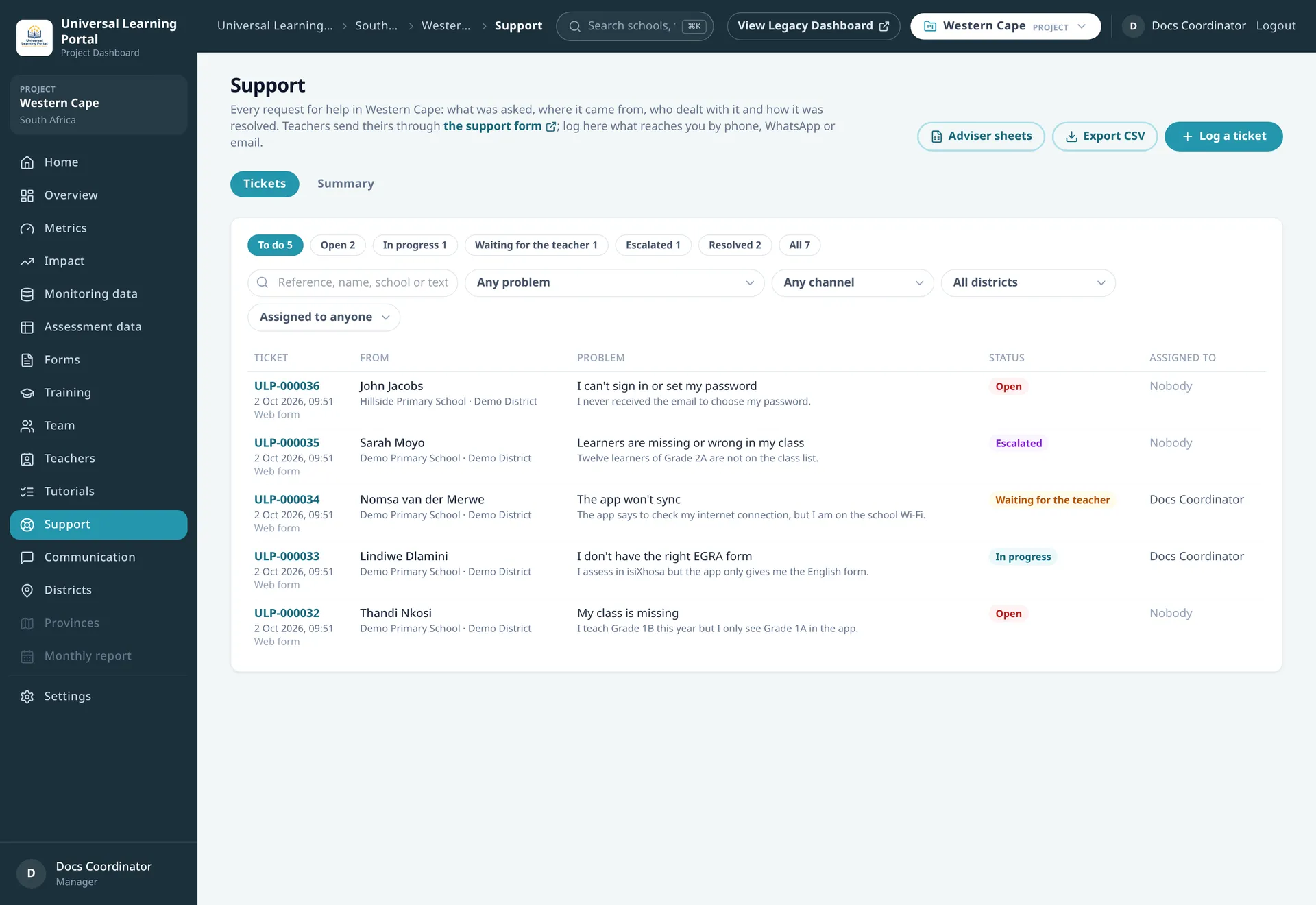
Finding tickets
Section titled “Finding tickets”The page opens on To do, which is every ticket that is not resolved. The buttons next to it show one status each, with how many tickets it has, and All shows everything.
Below them you can search by reference, name, school or any word of the description, and filter by problem, by the channel the request came through, by district and by who the ticket is assigned to. Not assigned shows the tickets nobody has taken yet.
Opening a ticket
Section titled “Opening a ticket”Click a ticket to open it. The conversation is in the middle, with the box to answer under it. The state of the ticket and who asked are at the side.
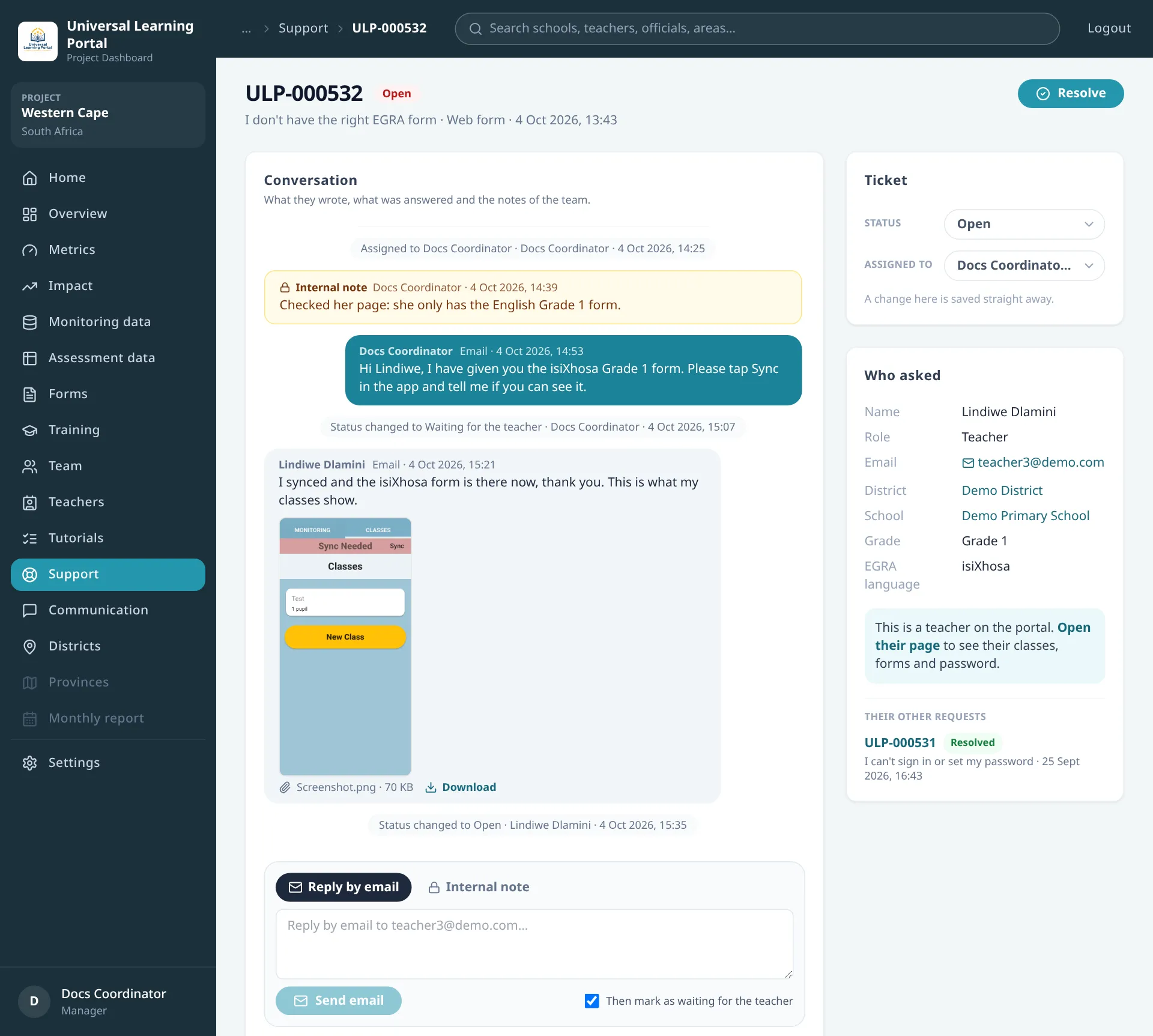
Conversation shows, oldest first, what they wrote, what was answered and the notes of the team. Notes are in yellow and only the team sees them. The page keeps itself up to date: a new message shows within a couple of seconds, without reloading. If you are reading further up, New message takes you to it.
Who asked has the name, role, email and phone they gave, and their district, school and class. The district and the school open their pages. Their other requests lists the other tickets of the same person.
When the email or the phone belongs to one teacher on the portal, the ticket says This is a teacher on the portal and Open their page takes you there. Most problems with classes, forms and passwords are fixed from that page: see The Teacher page. When nobody matches, Look for them in Teachers opens the list of teachers, on that school when the ticket has one.
Answering
Section titled “Answering”The box under the conversation has two tabs.
| Tab | What it does |
|---|---|
| Reply | Sends your answer the way the request came: Reply on WhatsApp when they wrote on WhatsApp, Reply by email when the ticket has an email address. With neither, Copy copies what you wrote so you can send it yourself |
| Internal note | Records what you did or what they told you. It is not sent to anyone |
An email goes out exactly as you write it: the box starts with a greeting and your name for you to keep or change, and nothing else is added.
After you send an answer, the ticket goes to Waiting for the teacher. Untick Then mark as waiting for the teacher before sending to leave the status as it is.
When they answer, their answer lands in the conversation, the ticket goes back to Open and an email tells whoever it is assigned to. When nobody has taken it, the email goes to the support team’s address. They can answer in the same WhatsApp chat or by replying to your email.
Photos, voice notes and files
Section titled “Photos, voice notes and files”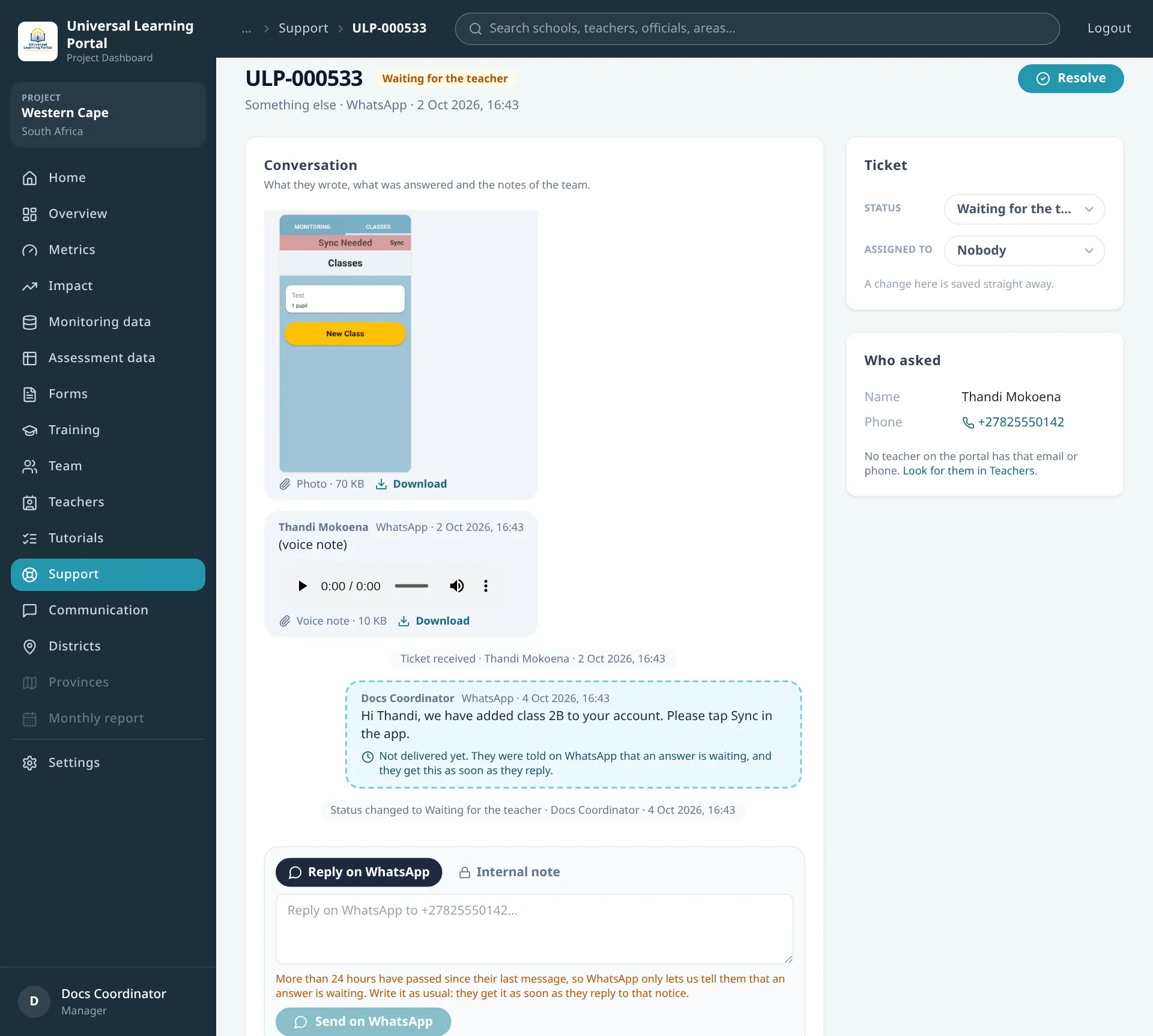
A photo, a voice note, a video or a document sent on WhatsApp, and the files attached to an email, are kept with the ticket. A photo shows in the conversation and opens at full size when you click it. A voice note plays in the page. Download saves any of them.
Answering on WhatsApp after a day
Section titled “Answering on WhatsApp after a day”WhatsApp only lets a business write freely for 24 hours after the person’s last message. When more time has passed, write your answer as usual. They get a short message saying that the support team has an answer, with a Read the answer button, and your answer goes out as soon as they tap it or write back. Until then it shows in the conversation as Not delivered yet.
Status and who has the ticket
Section titled “Status and who has the ticket”| Status | Use it when |
|---|---|
| Open | It is the team’s turn: nobody has started on it, or they have just answered |
| In progress | Someone is dealing with it |
| Waiting for the teacher | You answered or asked them something. The ticket goes here by itself when you reply |
| Escalated | It needs the technical team |
| Resolved | It is done |
Choose the status and who the ticket is Assigned to at the side. Both are saved as soon as you choose them.
To close a ticket, click Resolve and write how it was resolved. The button in the window stays off until you have written something, because the log has to say how each request ended.
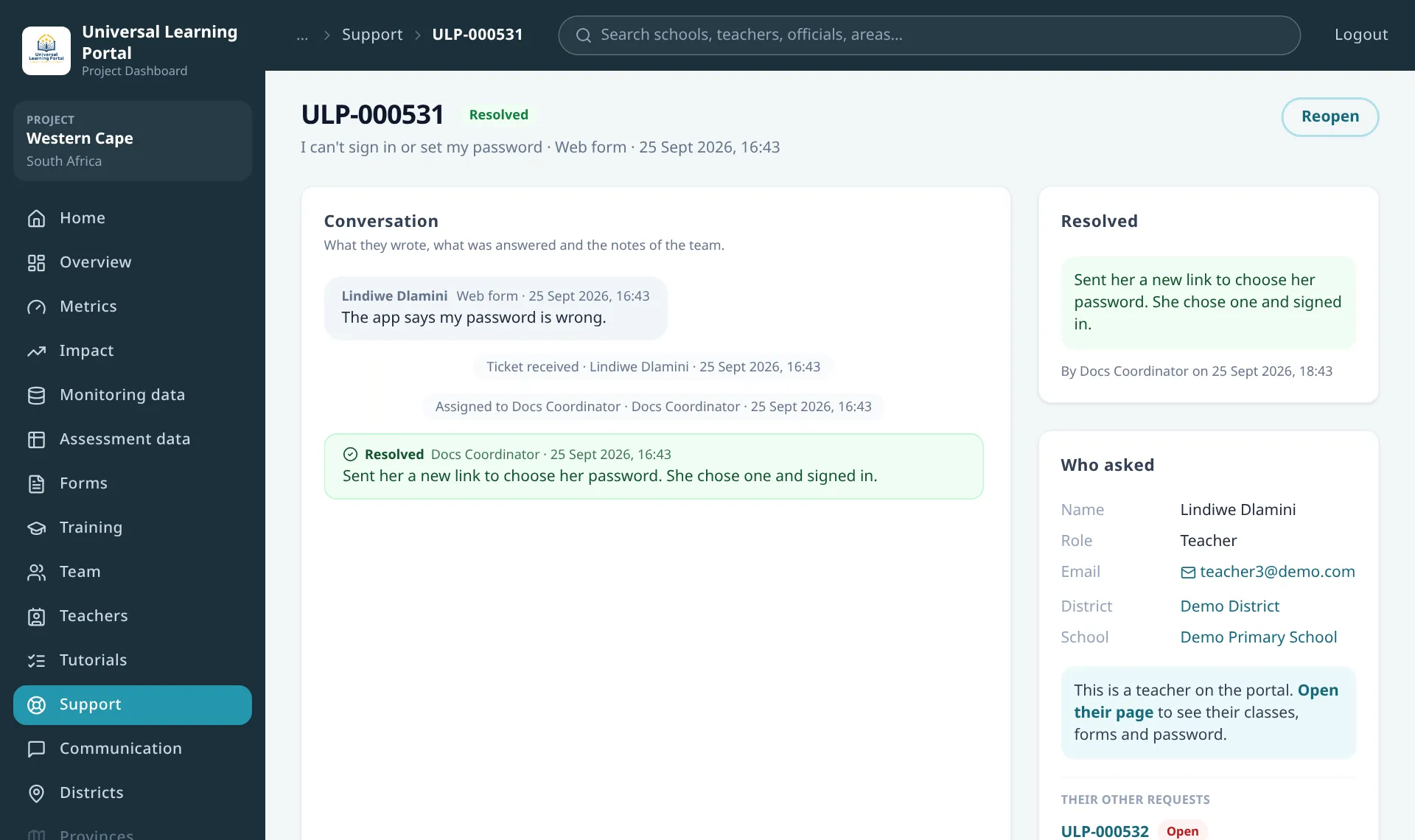
A resolved ticket shows how it was resolved, by whom and when. If the problem comes back, Reopen puts it back in To do. Tickets are never deleted.
When you resolve a ticket that someone sent on WhatsApp or through the form, they are told that it is resolved. What you wrote in the window is for the log and is not sent to them. If they answer that it is not solved, the ticket opens again by itself and the team gets an email: on WhatsApp by tapping It is not solved or writing in the chat within a week, by email by replying. A plain thank-you is kept with the ticket and leaves it closed. After that week, what they write on WhatsApp starts a new ticket.
Logging a request that did not come through the form
Section titled “Logging a request that did not come through the form”Click Log a ticket and write down what you were told.
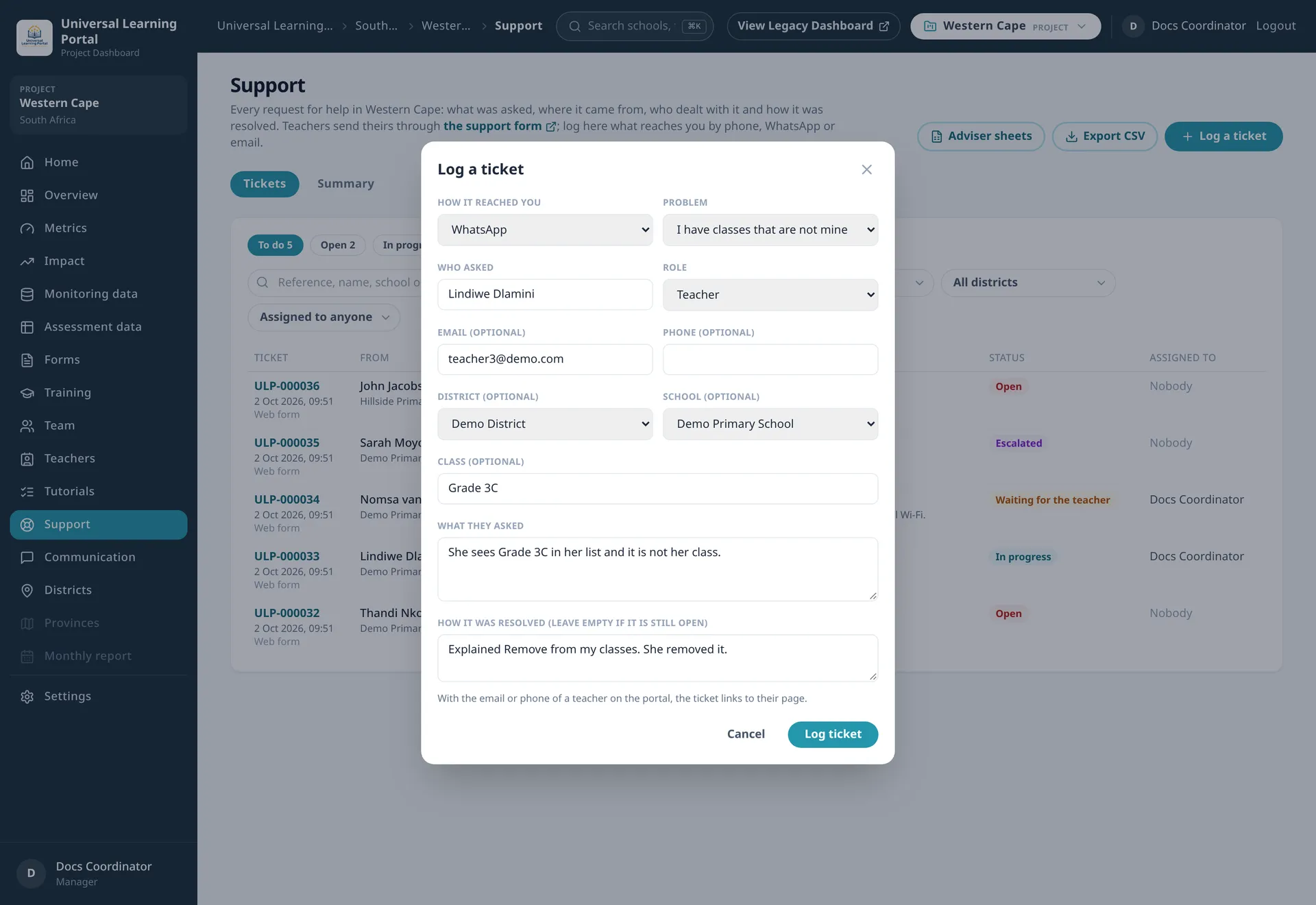
| Field | Notes |
|---|---|
| How it reached you | Email, WhatsApp, Phone call, In person, Subject advisor sheet or Other |
| Problem | Required. The same list teachers choose from on the form |
| Who asked | Required |
| Email and Phone | Optional. With the email or phone of a teacher on the portal, the ticket links to their page |
| District and School | Optional. Choose a district to pick the school from its list, or type the name as it was given |
| How it was resolved | Fill it in if you dealt with it there and then: the ticket is logged and resolved in one step. Leave it empty if it is still open |
Adviser sheets
Section titled “Adviser sheets”Subject advisers who help teachers themselves keep a sheet of the requests they deal with, with the same columns as the log. Adviser sheets is where you get the empty sheet for them and load the filled ones.
Empty sheet downloads it. It opens in Excel or Google Sheets, has one line per request and an example in the first line.
| Column | What to write |
|---|---|
| Date | The day of the request, as 2026-10-06 or 06/10/2026 |
| Channel | WhatsApp, Phone, Email, In person or Other. Empty counts as the adviser’s sheet |
| District, School | As they are called on the portal. A school that is not found is kept as written |
| Name, Email, Phone, Class | As the teacher gave them |
| Role | Teacher, Departmental head, Subject adviser or Other |
| Problem | Login, Install, Missing class, Wrong class, Learners, Form, Assessment, Sync, How to or Other |
| What they asked | The request in a sentence |
| Status | Resolved, or Open if the team still has to deal with it |
| How it was resolved, Resolved by, Date resolved | For the requests the adviser resolved |
To load a filled sheet, save it as CSV, click Load a filled sheet (CSV) and choose the file. Nothing is logged yet: the page shows what it would do with each line.
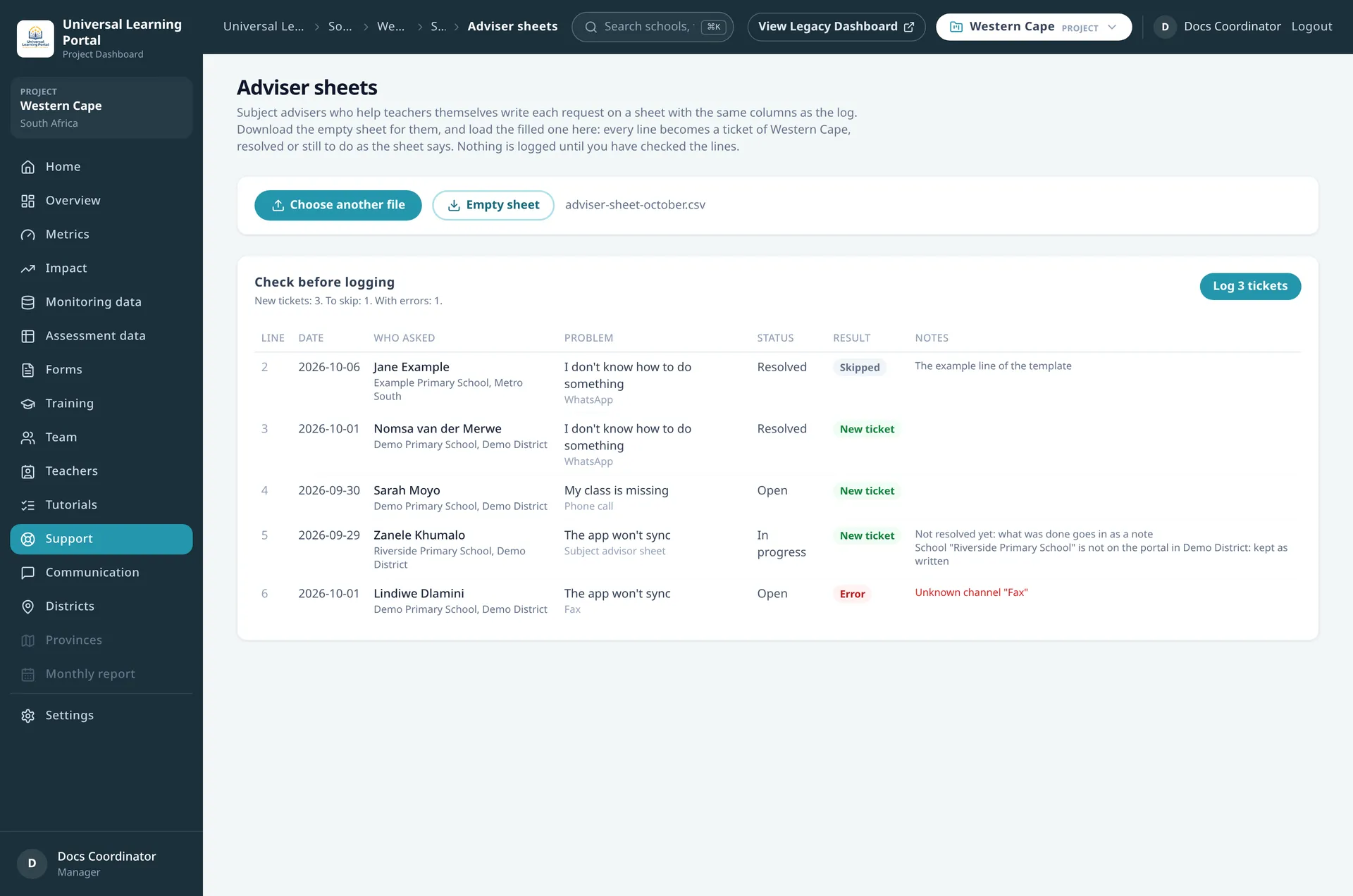
| Result | Meaning |
|---|---|
| New ticket | The line becomes a ticket, dated on the day the sheet says and in the status it says |
| Skipped | The example line, or a request that is already in the log |
| Error | The line cannot be read. The note says why: an unknown problem or district, a date that is not a date, or a resolved request that does not say how |
The button at the top says how many tickets it will log: click it to load them. Lines with errors are left out; correct them in the sheet and load it again. The lines that are already in the log are skipped, so loading the same sheet twice adds nothing.
Emails
Section titled “Emails”A teacher who sends the form with an email address gets an email with their reference and what they sent. They can reply to that email, or to any email you send them from the ticket, and what they write lands in the ticket with its attachments.
An answer you send from the ticket carries, under it, the message it answers. All the emails of a ticket have the same subject, with the reference in front, so they stay together in the person’s inbox.
The support team’s address gets an email for each ticket that comes through the form or by WhatsApp, with a link to it, and another when the person answers a ticket nobody has taken. Tickets you log by hand or from a sheet send no emails.
The summary
Section titled “The summary”Summary, next to Tickets, turns the log into figures for a period. Choose the dates, or click This month, Last month or All time.
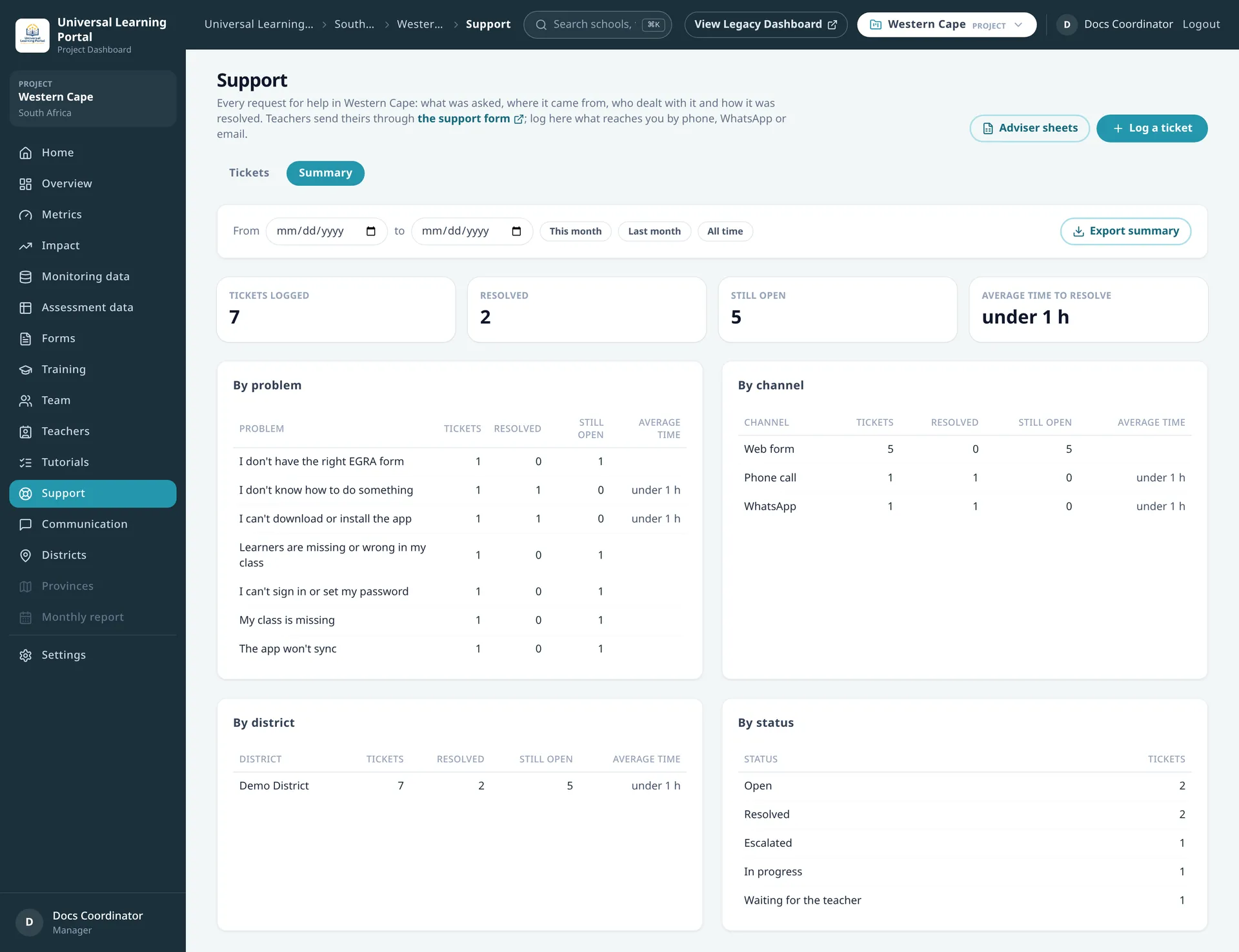
It shows how many tickets were logged in the period, how many of them are resolved and how many are still open, and the average time from logged to resolved. The tables break the same figures down by problem, by channel, by district and by status. Export summary downloads them as a CSV file.
Exporting the log
Section titled “Exporting the log”On Tickets, Export CSV downloads the tickets the page is showing, so set the status and the filters first: All for the whole log, or Resolved and a district for a part of it.
The file has one line per ticket with the reference, the date it was logged, the channel, district, school, name, role, email, phone, category, class, description, status, who it is assigned to, how it was resolved, who resolved it and when, and who logged it. Dates are in UTC.
Who sees what
Section titled “Who sees what”| Who | What they can do |
|---|---|
| Managers | Everything on this page |
| Province officials | Read the tickets and the summary of the province. They cannot log, change or resolve a ticket |
| District officials | The same, for their districts only: Support is in the menu of their district |
| Teachers | Nothing. They use the support form |
Inside a district, Support shows the tickets of that district.