
Completing a visit
When you’ve answered the school questions, set a status for every teacher and finished the required monitoring sections, you can complete the visit.
What blocks completion
Section titled “What blocks completion”The app refuses to complete the visit if any of these are missing:
- School Information questions not all answered.
- Head Teacher questions not all answered.
- A teacher set to Start Monitoring whose Teacher Questions or Lesson Observation aren’t 100% answered.
- A teacher with no status set at all.
- No teachers monitored: at least one teacher needs Start Monitoring or Teacher is Absent. If every teacher is Not Monitoring (or none have a status), the app shows Visit Unfinished.
If something is missing, the app shows a dialog and jumps you back to the offending section.
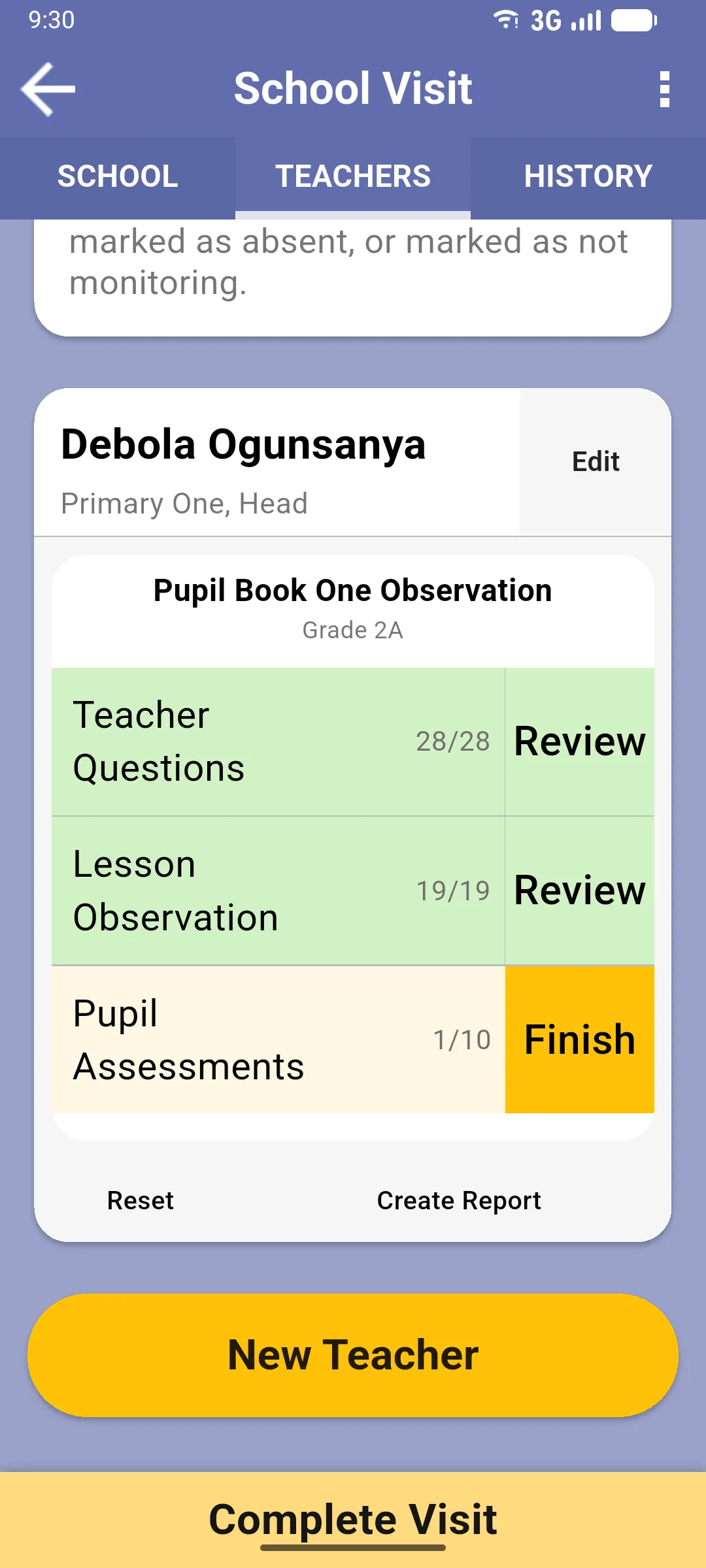
In the example below, the teacher has Teacher Questions 28/28 and Lesson Observation 19/19 (both green, Review), and Pupil Assessments 1/10 (yellow, Finish). The visit can already be completed in this state.
Tap Complete Visit
Section titled “Tap Complete Visit”Once everything required is filled, tap the yellow Complete Visit at the bottom of any tab. A dialog asks Complete? Are you sure you wish to complete this visit?. Tap Yes, complete the visit to confirm, or Do not complete to cancel.
After completing
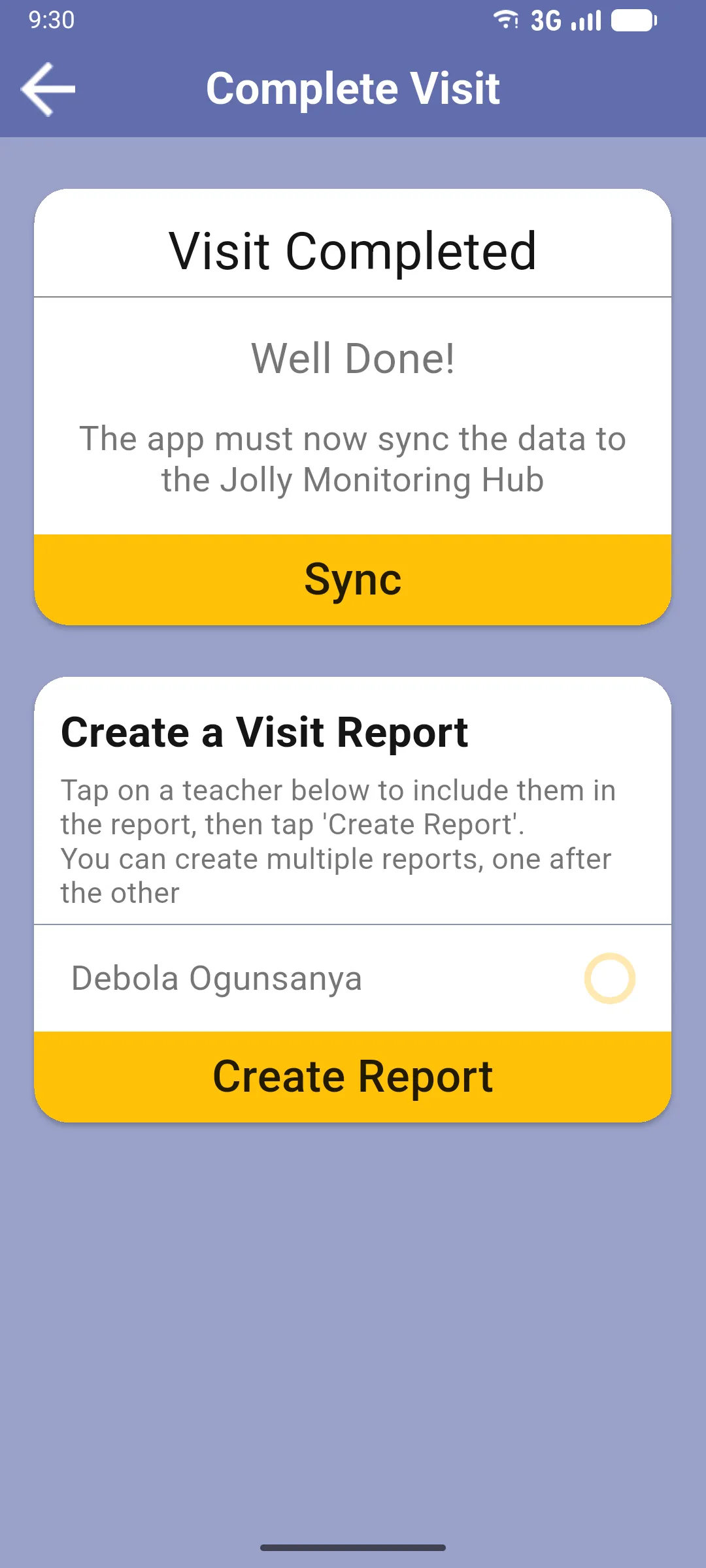
Section titled “After completing”The app marks the visit complete and opens the Complete Visit screen with two cards:
- Visit Completed: confirms the visit is locally complete with Well Done!, plus a yellow Sync button to push the data to the Jolly Monitoring Hub right away.
- Create a Visit Report: lists the teachers from the visit. Tick one or more and tap Create Report to generate a report. You can create multiple reports, one after another. See Creating a report.
After syncing
Section titled “After syncing”Tap Sync, confirm in the dialog and the visit is uploaded to the server. The app then opens the Completed Visit screen, a read-only view of everything captured during the visit. See Past visits and the read-only view.
You can come back to the same screen at any time from the school’s MONITORING tab. You can’t edit any answers from there, but you can still generate reports.
If you actually need to change something, scroll to the bottom of the Completed Visit screen and tap Reopen Visit. The button only appears for visits you monitored. A confirmation dialog warns You should only reopen a visit if you plan to change answers. Tap REOPEN VISIT and the app sends you back to the editable visit screen.
Next: Creating a report