
Inside a school: the four tabs
When you tap a school from the SCHOOLS tab, the school detail opens with four tabs: DETAILS, TEACHERS, MONITORING and CLASSES.
DETAILS
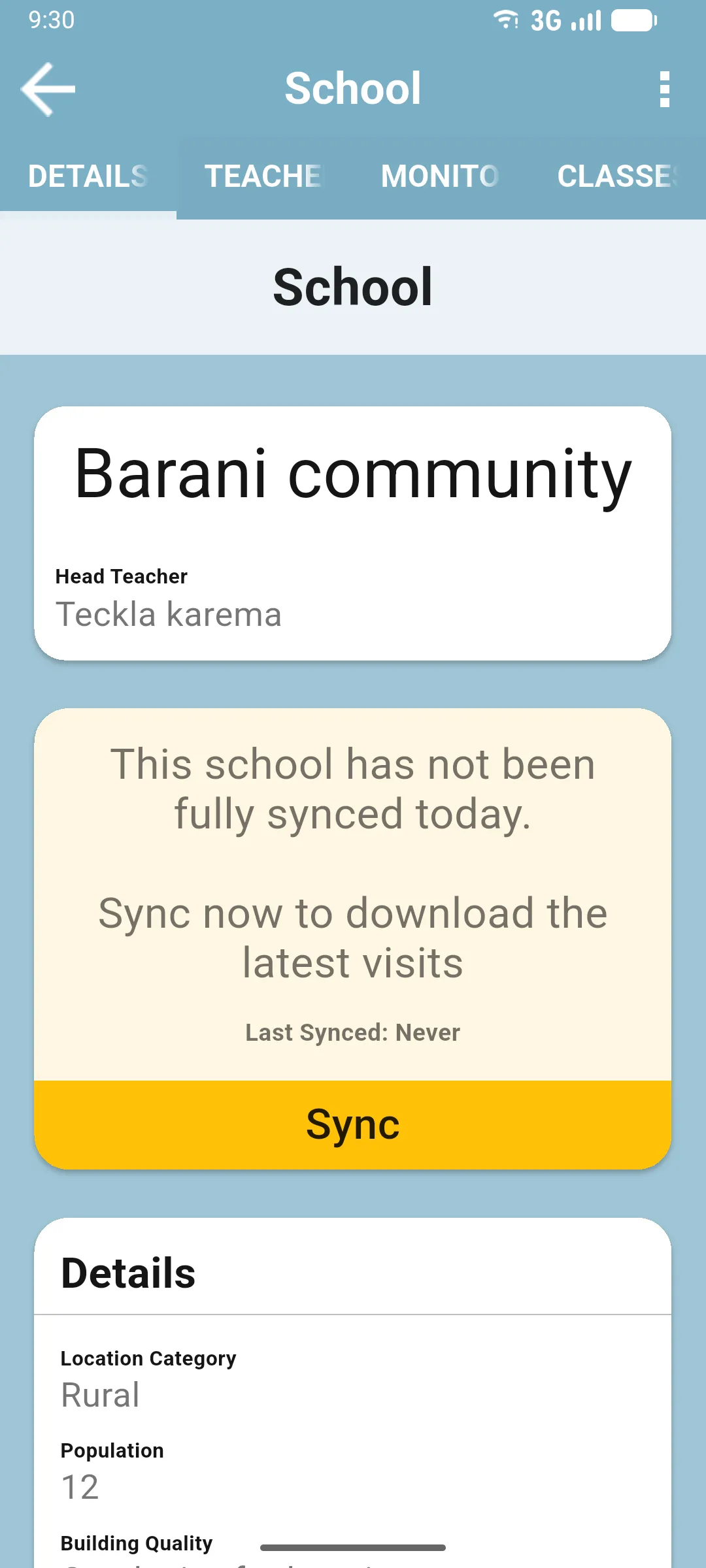
Section titled “DETAILS”The school’s profile: name, Head Teacher and any other fields configured by your project. Edit from here. See Adding and editing schools.
TEACHERS
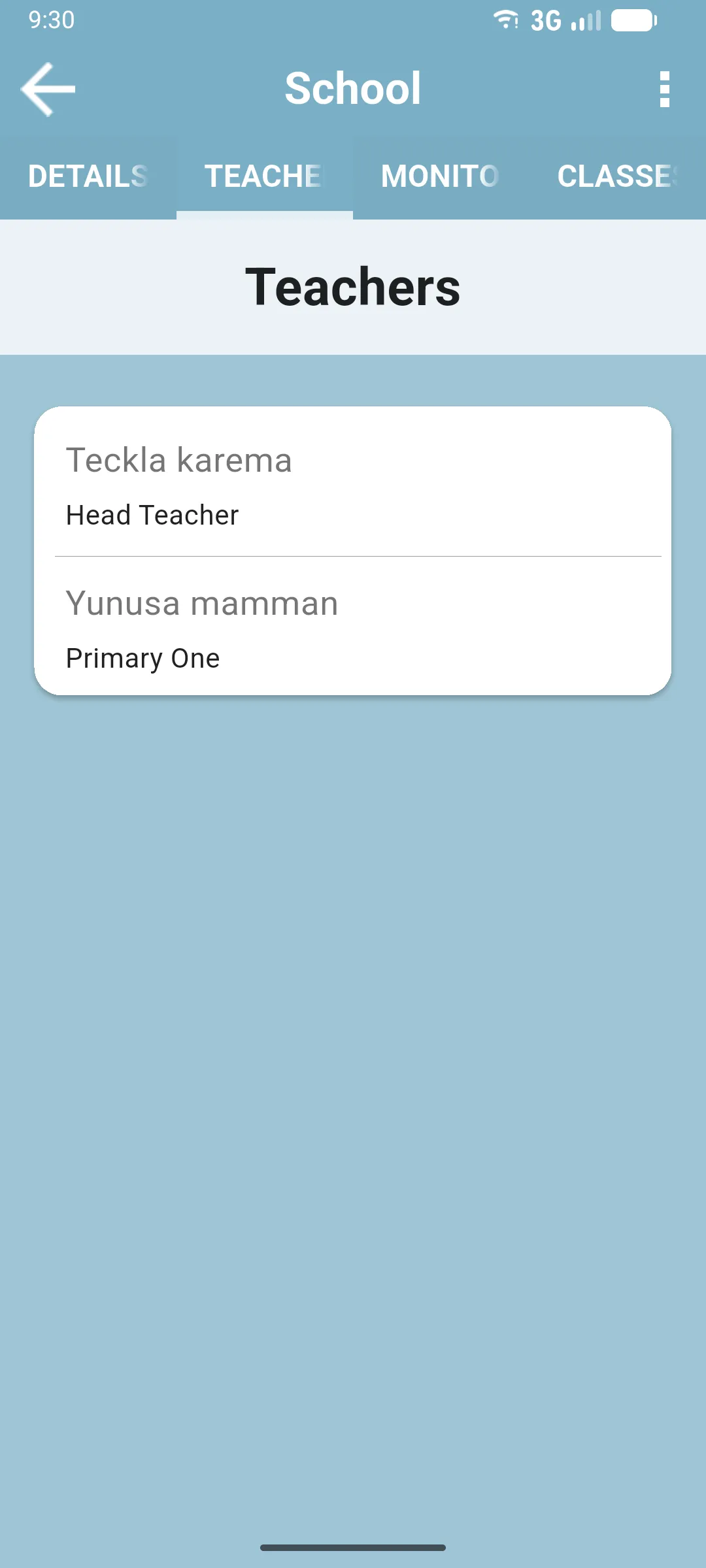
Section titled “TEACHERS”The teachers registered at the school, each card showing the name and designation (Head Teacher, Primary One, etc.). Tap one to see their profile, classes, visit history and evaluations. New teachers are added from inside a visit, not from this tab.
MONITORING
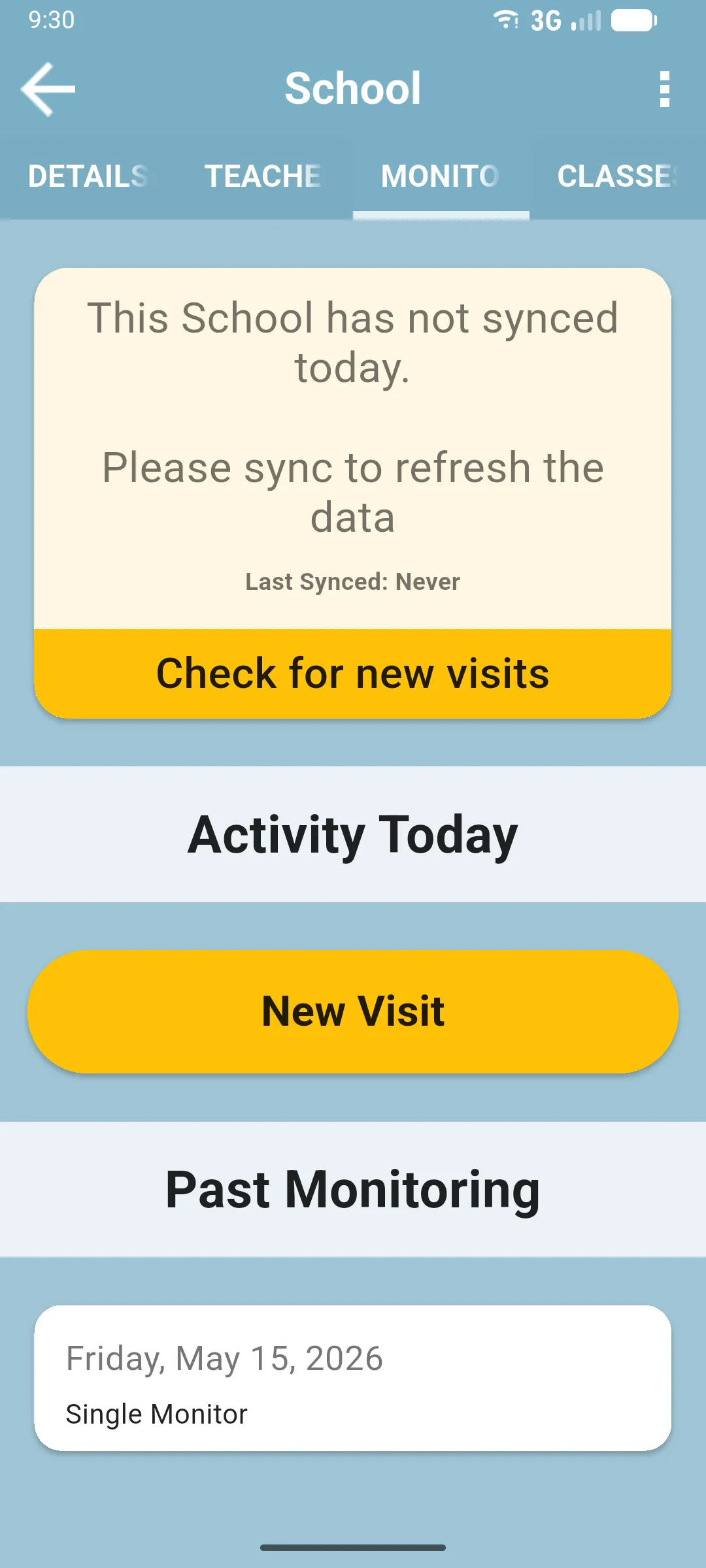
Section titled “MONITORING”The visits done at the school. Three blocks:
- A sync card with Check for new visits to pull the latest from the server.
- Activity Today: visits started today and not yet completed.
- New Visit: starts a visit at this specific school. (Starting a visit from the home screen instead lets you pick the school.)
- Past Monitoring: the completed visits, each card showing the date and the monitor who ran it.
CLASSES
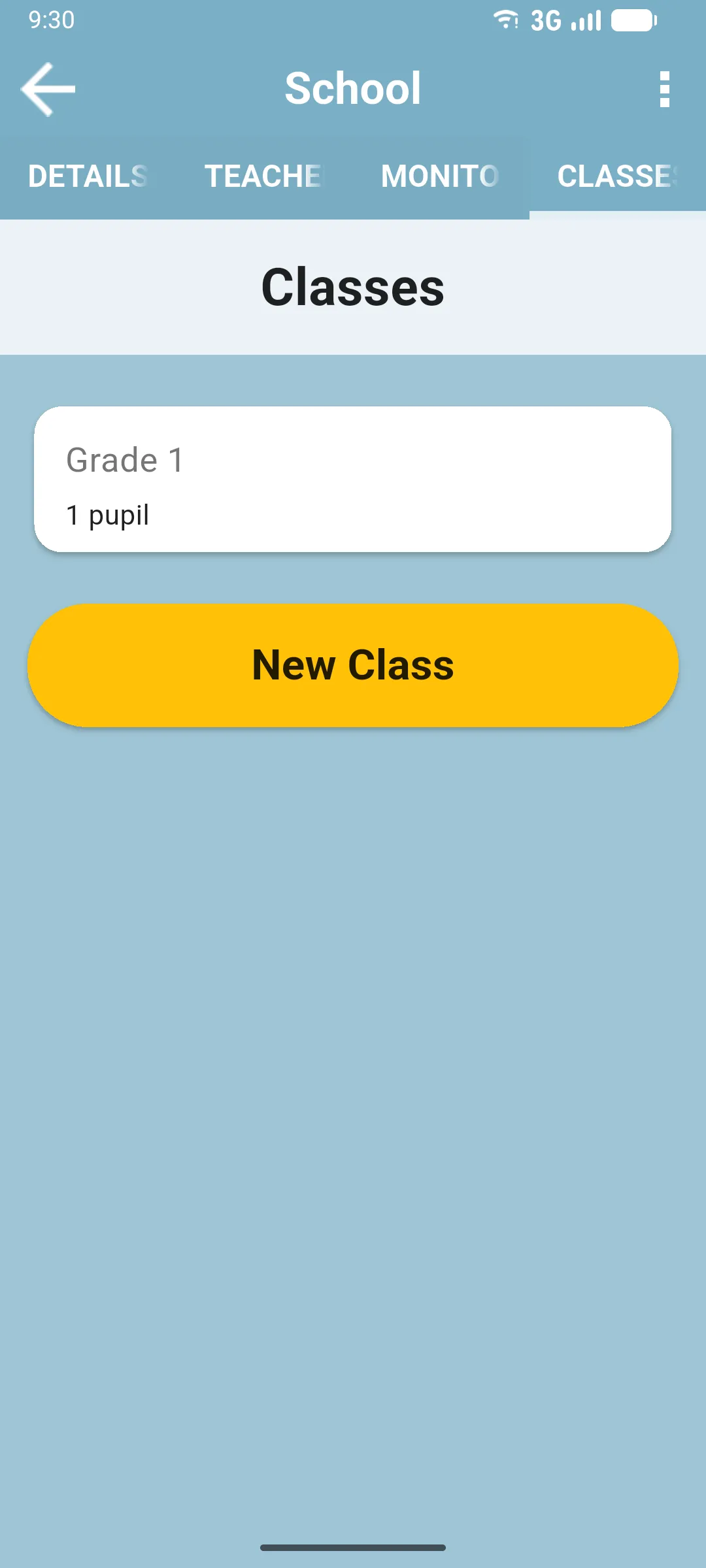
Section titled “CLASSES”The classes at the school. Each card shows the class name and pupil count. Tap a card to see its pupil roster and run pupil assessments. See The CLASSES tab.
Next: Adding and editing schools