
Teacher import
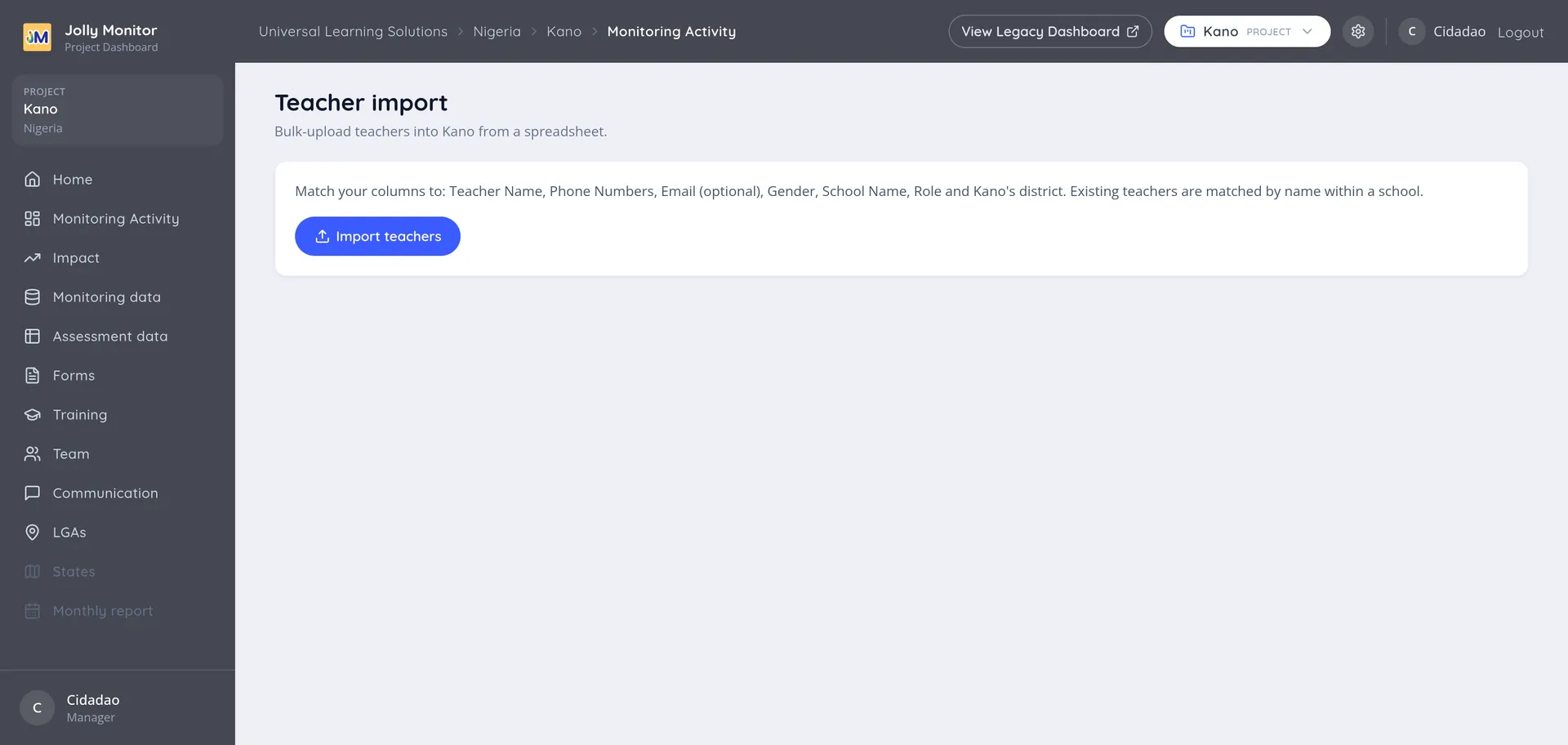
Teacher import loads many teachers at once, instead of adding them one by one from each school. It is reached from the project settings menu.
The columns
Section titled “The columns”Import teachers takes a spreadsheet, and you map your columns onto the ones it expects:
| Column | Notes |
|---|---|
| Teacher Name | Required |
| Phone Numbers | Required; several can share one cell, separated by commas |
| Optional | |
| Gender | Required |
| School Name | Required; typed as text, and matched against the district’s schools |
| Role | Required; one of the country’s teacher roles |
The district is not a spreadsheet column: it is chosen from a list of the project’s existing districts (under your country’s own word for them), so it always lands somewhere real.
How rows are matched
Section titled “How rows are matched”- The school is matched by name within that district, ignoring capitalisation and common filler words such as “primary school”, so “Hotoro Central Primary School” and “Hotoro Central” land on the same record. If no school matches, one is created.
- The teacher is matched within that school, either by an identical name or by any of the phone numbers in the row. A match reuses the existing teacher and adds the row’s role to them; no match creates a new teacher.
Before importing
Section titled “Before importing”Importing creates real records, so a few minutes on the file saves hours afterwards:
- Spell school names exactly as they already exist in the district, since anything else creates a school.
- Fill in phone numbers wherever you have them, so returning teachers are recognised.
- Check for duplicate rows within the file itself.
- Check for trailing spaces in names, which stop a match without being visible.
After importing
Section titled “After importing”Run a deduplication evaluation on the affected districts straight away, while the import is fresh. A bulk import is the single most common source of duplicates, and the candidates are much easier to judge now than in six months. Schools are worth checking first, since those are the ones an import creates silently.
Importing other things
Section titled “Importing other things”The same pattern exists elsewhere in the dashboard: staff can be imported from a project’s Team section (name, phones, email, gender and job title; no district or school, since staff belong to the project), and training participants from a training event, whose import matches and creates schools just like this one. All of them match existing people by name or phone number.
Next: Project Staff